

Tuesday, 28 February 2012






nokia 6760s (slide) mobile phone repair solution
0
The following mobile phone repair manuals only covers for Nokia 6760s hardware problem issues.
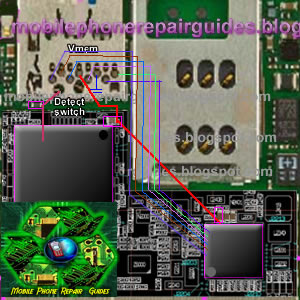
Insert Sim Card Problem solution
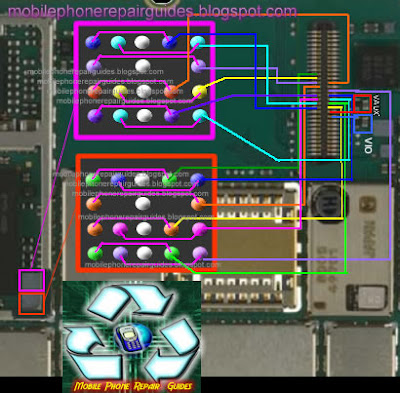
Key Pad Failure Repair Solution
Key Pad Line Paths
LED Back Light Problem
Local Mode / Test Mode solution
Mic (mouthpiece) Solution 1
LCD Display Problem Solution
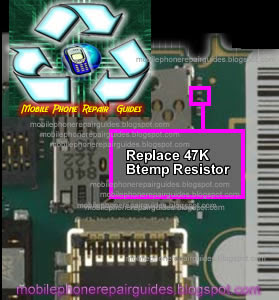
Not Charging Repair Solution
Charger Not supported Solution
Ringer / Buzzer failure solution
Earpiece Speaker Failure solution
Nokia 6760s solution
Monday, 27 February 2012
Motorola DROID X2 Factory/Soft Reset:
0Motorola DROID X2 (also called Motorola Daytona) Hard Reset to Factory Default Settings.
In this guide we show you how to hard reset the Motorola DROID X2 with step by step instructions.
Precautions: Performing hard reset process will delete or wipe all data from the. We highly recommend to have a back up copy of all your important files stored on the device.
Motorola DROID X2 Factory/Soft Reset:

On the main Home Screen,
->select MENU
->select SETTINGS-> PRIVACY
->select FACTORY DATA RESET
->select RESET PHONE
->Enter the password
->select ERASE EVERYTHING
If the Motorola DROID X2 is frozen: this may sometimes occurs when running multiple applications and the device become unresponsive, you may fix this by rebooting the device or removing the battery for a while. But if the problem still persist you may need to full factory reset the device.
Motorola DROID X2 Hard Reset through button combination for sever freezing problem., this will prompt you into recovery mode.
1. Turn the power off or remove the battery and reinsert it back again after a couple of seconds.
2. Press and hold the POWER+CAMERA buttons at the same time
3. Release the Camera button when prompted
4. Press and hold the Volume Down key
5. It will show A yellow exclamation display
6. Select the Wipe data/factory reset (Alt + W) option
Wait 'til the phone completely reboots. That's it...
In this guide we show you how to hard reset the Motorola DROID X2 with step by step instructions.
Precautions: Performing hard reset process will delete or wipe all data from the. We highly recommend to have a back up copy of all your important files stored on the device.
Motorola DROID X2 Factory/Soft Reset:
On the main Home Screen,
->select MENU
->select SETTINGS-> PRIVACY
->select FACTORY DATA RESET
->select RESET PHONE
->Enter the password
->select ERASE EVERYTHING
If the Motorola DROID X2 is frozen: this may sometimes occurs when running multiple applications and the device become unresponsive, you may fix this by rebooting the device or removing the battery for a while. But if the problem still persist you may need to full factory reset the device.
Motorola DROID X2 Hard Reset through button combination for sever freezing problem., this will prompt you into recovery mode.
1. Turn the power off or remove the battery and reinsert it back again after a couple of seconds.
2. Press and hold the POWER+CAMERA buttons at the same time
3. Release the Camera button when prompted
4. Press and hold the Volume Down key
5. It will show A yellow exclamation display
6. Select the Wipe data/factory reset (Alt + W) option
Wait 'til the phone completely reboots. That's it...
Google Nexus S 4G Hard Reset - restore to factory settings procedure
0This is the way how to hard reset the Google Nexus S 4G also known as Samsung SPH-D720. This will restore the phone data to original factory default settings.
We recommend to have a back up copy of all your personal data first, before proceeding. The result of this procedure will delete all data from the Google Nexus S 4G.
This procedures are only advisable if the phone experience several error problem like frozen or unresponsive.
We recommend to have a back up copy of all your personal data first, before proceeding. The result of this procedure will delete all data from the Google Nexus S 4G.
This procedures are only advisable if the phone experience several error problem like frozen or unresponsive.

Factory reset through menu settings:
1. On the main home screen, select menu
2. Tap Settings, then Privacy
3. Select Factory data reset
4. Select Reset phone
5. Enter the password if prompted, then confirm by tapping Erase everything
Google Nexus S 4G Hard Reset through Button keys combination:
1. Turn the power off. Take the battery out from the phone and reinsert it back again
2. Hold the Volume Down button
3. Press and release the Power button
4. You are now presented with a menu that allows for Fastbook, Recovery, Clear Storage, and Simlock
5. Select Clear Storage by pressing the Volume Down button
6. Press and release the Power button
7. Confirm by selecting: Volume Up for YES and Volume Down for NO
Once the wipe is complete, the phone will reboot to its factory fresh state.
1. On the main home screen, select menu
2. Tap Settings, then Privacy
3. Select Factory data reset
4. Select Reset phone
5. Enter the password if prompted, then confirm by tapping Erase everything
Google Nexus S 4G Hard Reset through Button keys combination:
1. Turn the power off. Take the battery out from the phone and reinsert it back again
2. Hold the Volume Down button
3. Press and release the Power button
4. You are now presented with a menu that allows for Fastbook, Recovery, Clear Storage, and Simlock
5. Select Clear Storage by pressing the Volume Down button
6. Press and release the Power button
7. Confirm by selecting: Volume Up for YES and Volume Down for NO
Once the wipe is complete, the phone will reboot to its factory fresh state.
Subscribe to:
Posts (Atom)


